WideMark
WideMark is a Chrome extension for managing bookmarks in the side panel, so your bookmarks sit next to the page you are reading without opening a separate bookmark manager. You can browse the full bookmark tree, see recently added bookmarks, search by title or URL, organize by drag and drop (including dragging links straight from a web page), sort by name, and give folders colors and icons; when tidying up, it finds duplicate bookmarks, deletes empty folders and merges folders with the same name. Theme, font size and line spacing are adjustable, and everything can be done from the keyboard. Bookmark data is processed only on your computer, and the extension is open source.
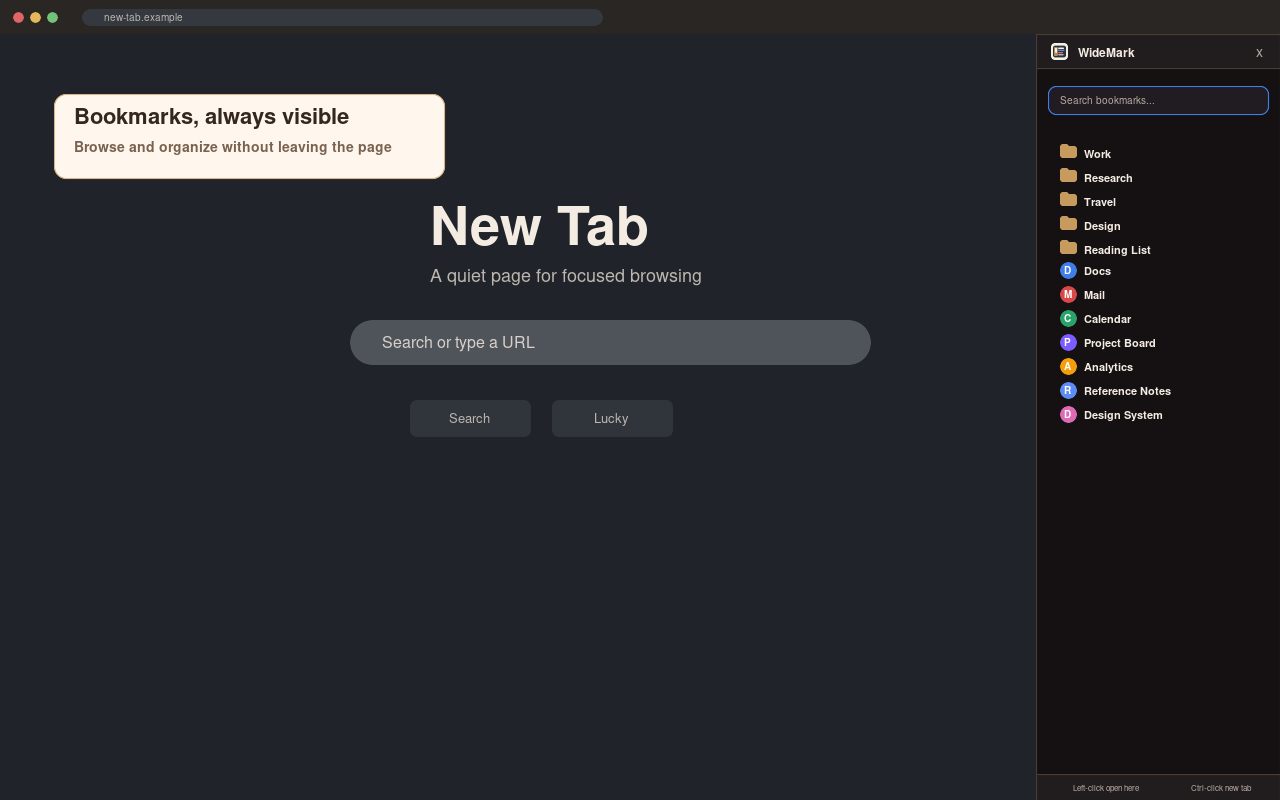
WideMark is a Chrome extension for managing bookmarks in the side panel. Bookmarks stay next to the page being read, so users can find, open, organize and tidy them without switching to Chrome's separate bookmark manager.
The problem it solves
Chrome's built-in bookmark manager opens in its own tab, away from the page the user is working on. Once a collection grows to many folders, finding a bookmark or putting it in the right place means switching back and forth. WideMark shows the whole bookmark tree in Chrome's side panel, beside the current page, and brings the tools for searching, organizing and cleaning up into the same panel.
Main features
Browsing. The panel lists the Bookmarks Bar, followed by Other Bookmarks and, where present, Mobile Bookmarks; these extra folders can be hidden in the settings. A Recently Added section shows the 10 newest bookmarks. Bookmarks can be opened in the current tab, a new tab or a background tab, and Ctrl-click or middle-click always opens them in the background.
Search. Typing in the search box filters bookmarks by title or URL as the user types, with titles that begin with the search text listed first.
Organizing. Bookmarks and folders can be created, renamed, edited, moved, reordered and deleted in the panel, and a folder's contents can be sorted by name. Dragging a link from a web page onto the panel saves it as a bookmark in that place. A drag protection option prevents accidental moves.
Folder styles and appearance. Folders can be given one of 7 colors and 5 icons so that important ones stand out. The panel offers 7 themes or can follow the Chrome or system theme, and the font, font size, row spacing and zoom level can be adjusted.
Cleanup. WideMark finds duplicate bookmarks, either by identical URL or by the same domain, and lets the user delete them from the result list. It can also delete empty folders and merge folders with the same name that sit side by side, after the user confirms.
Keyboard use. The panel opens from the toolbar icon or with Alt+B, a shortcut that can be changed at chrome://extensions/shortcuts. The arrow keys move through the tree, Enter opens the selected bookmark and the slash key jumps to search.
Who it is for
WideMark is meant for people who keep a large number of bookmarks in many folders and use them throughout the day, such as researchers, developers and anyone who relies on bookmarks to keep reference pages within reach.
What you need
WideMark requires Chrome 116 or later and is installed from the Chrome Web Store. It needs no account. It uses only Chrome's bookmarks, side panel, storage and favicon permissions, has no access to the content of the websites the user visits, and does not send bookmark data to any server. Folder colors and icons are saved with the user's Chrome profile and follow it to other computers through Chrome sync; other settings stay on the current computer. The interface is available in 10 languages, and the source code is published on GitHub under the ISC license.
Bookmark management in one side panel
Bookmarks beside the page
The full bookmark tree and the 10 most recently added bookmarks stay in the side panel. Bookmarks open in the current tab, a new tab or a background tab.
Search as you type
Bookmarks are filtered by title or URL while typing, and titles that start with the search text are listed first.
Drag-and-drop organizing
Bookmarks and folders can be created, renamed, edited, moved and deleted, folders sorted by name, and links dragged from a web page saved straight into a folder.
Folder styles and themes
Folders can be given one of 7 colors and 5 icons. The panel offers 7 themes or follows the Chrome or system theme, with adjustable font, font size, row spacing and zoom.
Duplicates and cleanup
Duplicate bookmarks are found by identical URL or by domain and can be deleted from the result list; empty folders can be removed and same-named folders merged after confirmation.