Toolkit for Antigravity
Toolkit for Antigravity is a comprehensive utility suite designed to monitor AI model usage and manage conversation caches within the Google Antigravity IDE. Formerly known as Antigravity Panel, this extension provides real-time insights, usage analytics, and workflow automation tools to optimize your AI-assisted development environment.
Why Toolkit for Antigravity?
- Track Quotas: Real-time monitoring with visual warnings to prevent service interruptions.
- Analyze Usage: Interactive charts visualize consumption trends over time.
- Maintain Workspace: Manage AI conversation caches and code analysis data with a single click.
- Integrated UI: Native theme integration provides a seamless experience within the IDE sidebar.
- Global Support: Full localization for 13 languages with intelligent runtime notifications.
- Diagnostic Tools: Built-in feedback and error reporting to ensure service stability.
Screenshots
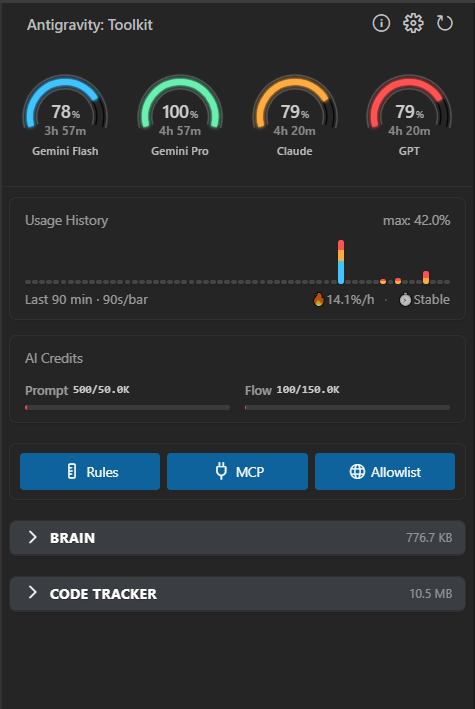 |
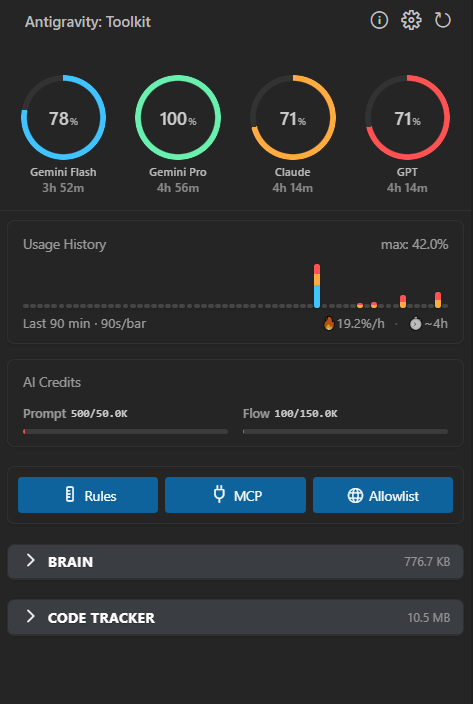 |
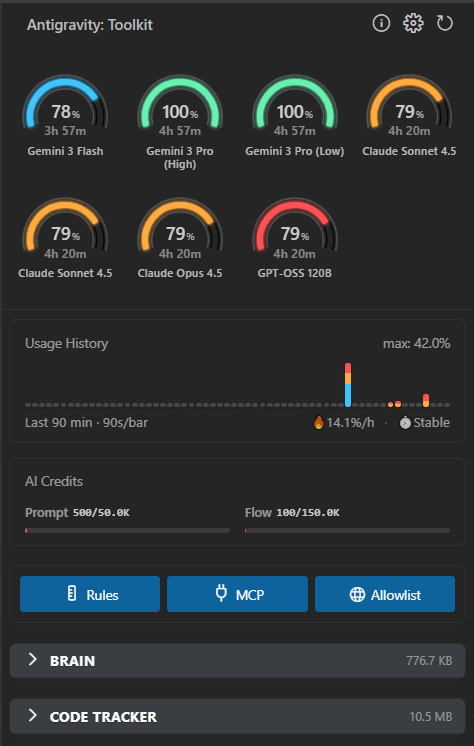 |
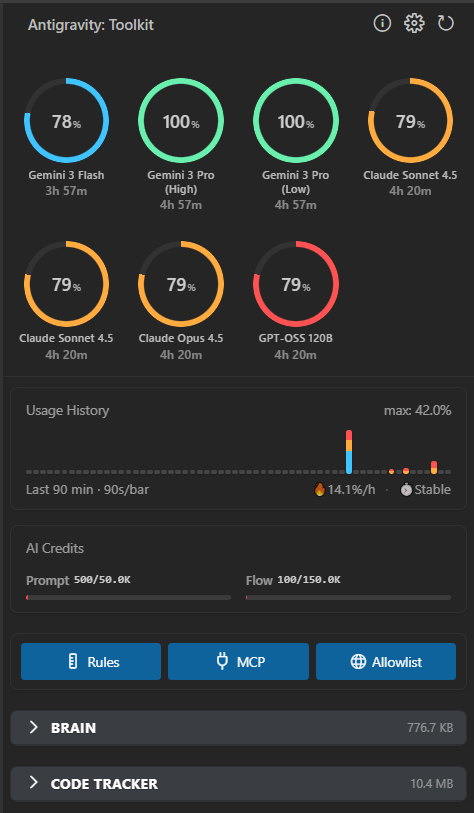 |
Real-time quota monitoring, usage trends, and cache management in one integrated view.
Key Features
Smart Quota Monitoring
Monitor your AI resource availability at a glance:
- Visual Dashboards: Grouped displays for model families including
Gemini,Claude, andGPT. - Status Bar Integration: View remaining quota with emoji indicators (
🟢,🟡,🔴) and current cache size. - Detailed Tooltips: Hover over the status bar to see specific model limits and reset times.
- Smart Thresholds: Configurable alerts for warning (≤30%) and critical (≤10%) levels.
Usage Trends & Analytics
Identify consumption patterns with interactive data visualization:
- Historical Tracking: View usage across a flexible range (10 to 120 minutes).
- Persistent Storage: Tracks 24-hour history to analyze long-term trends.
- Usage Rate: Real-time calculation of consumption speed (percentage per hour).
- Runway Prediction: Estimated time remaining until quota exhaustion based on current activity.
Token Credits Tracking
Stay informed about your credit consumption:
- Prompt Credits: Track usage for conversation inputs and reasoning results.
- Flow Credits: Monitor operations such as search, modifications, and command execution.
- User Insights: Toggleable user info cards in the sidebar settings.
Cache Management
Keep your local environment lean and performant:
- Brain Tasks: Browse and delete AI conversation caches. View task size, file counts, and creation dates.
- Code Context: Manage project-specific code analysis caches.
- Smart Cleanup: Automatic closing of related editor tabs when caches are cleared.
- Previews: Support for previewing images, Markdown, and code files within the cache.
Auto-Accept (Hands-free Mode)
Accelerate your development cycle by streamlining repetitive tasks:
- Automated Approvals: Automatically accepts Agent-suggested terminal commands and file edits.
- Easy Toggle: Quickly enable or disable the feature via the "Rocket" switch in the sidebar.
Service Recovery Tools
Resolve common issues without restarting the IDE:
- Restart: Reboots the background Language Server if the Agent becomes unresponsive.
- Reset: Clears user status cache to fix stuck quota updates.
- Reload: Refreshes the window to resolve UI glitches.
Installation
Via Extension Marketplace
- Launch Antigravity IDE.
- Navigate to the Extensions view (
Ctrl+Shift+XorCmd+Shift+X). - Search for
Toolkit for Antigravity. - Click Install.
Alternatively, visit the Visual Studio Marketplace or the Open VSX Registry.
Manual Installation
- Download the latest
.vsixfile from GitHub Releases. - In the Extensions panel, click the
...(More Actions) menu. - Select Install from VSIX... and choose the downloaded file.
Quick Start
- Open the Panel: Click the Antigravity icon in the sidebar or run the
Antigravity Toolkit: Open Panelcommand from the Command Palette (Ctrl+Shift+P). - Monitor Quota: Use the pie charts to see model family status. Hover for detailed metrics.
- Manage Cache: Expand the Brain or Code Tracker sections to review and delete unnecessary data.
Note: Deleting tasks will permanently remove conversation history and associated artifacts.
Available Commands
| Command | Description |
|---|---|
Antigravity Toolkit: Open Panel |
Opens the sidebar utility panel |
Antigravity Toolkit: Refresh Quota |
Forces a manual refresh of quota data |
Antigravity Toolkit: Show Cache Size |
Triggers a notification showing total cache size |
Antigravity Toolkit: Clean Cache |
Deletes all local cache data |
Antigravity Toolkit: Open Settings |
Opens the extension configuration page |
Antigravity Toolkit: Restart Language Server |
Reboots the Antigravity Agent Service |
Antigravity Toolkit: Reset User Status |
Resets the status updater to fix sync issues |
Antigravity Toolkit: Run Diagnostics |
Performs connectivity and status checks |
Antigravity Toolkit: Toggle Auto-Accept |
Switches automatic command acceptance on/off |
Configuration
Customize the extension behavior by searching for tfa in your IDE settings (Ctrl+,).
Quota Settings
Polling Interval: Frequency of quota refreshes (Default:90s).Show Quota: Toggle status bar visibility.Status Bar Style: Display aspercentage,resetTime,used, orremaining.Quota Style: Choose betweensemi-arcorclassic-donutvisualizations.Warning Threshold: Percentage at which the UI signals a warning (Default:30%).
Cache Settings
Show Cache Size: Toggle cache metrics in the status bar.Check Interval: Frequency of cache size scans (Default:120s).Auto Clean: Enable automatic deletion of old caches when limits are exceeded.Auto Clean Keep Count: Number of recent tasks to preserve during auto-clean (Default:5).
Advanced Settings
Server Host: Local address of the Antigravity Language Server (Default:127.0.0.1).Debug Mode: Enables verbose logging in the Output panel for troubleshooting.
Privacy & Safety
Your data remains local. Toolkit for Antigravity does not collect, transmit, or store user data on external servers. All operations, including quota monitoring and cache management, are performed locally on your machine.
Experimental Feature Notice: The Quota Monitoring feature utilizes internal metrics from the local Antigravity environment. This functionality is provided "as-is" and is not an official Google product; it may be affected by future updates to the IDE core.
Localization
To maintain technical accuracy, the UI follows a hybrid localization policy:
- Technical Terms: Labels such as
Rules,MCP,Auto-Accept, andReset Statusremain in English. - User Guidance: All tooltips, descriptions, and notifications are fully localized in 13 supported languages.
For Antigravity. By Antigravity.
Version History
Changelog
English | 中文文档
[2.4.7] - 2026-01-10
Fixed
- Windows Compatibility: Fixed workspace detection issues on Windows.
[2.4.6] - 2026-01-08
Improved
- Connection Robustness: Improved port detection accuracy on macOS and Linux.
- Smart Retries: Added intelligent warm-up and retry logic to prevent connection timeouts on slower machines.
[2.4.4] - 2026-01-05
Fixed
- WSL Support: Fixed quota display issues when using multiple profiles in WSL.
- Diagnostics: Added clear failure reasons to the output channel to help troubleshoot connection issues.
[2.4.1] - 2025-12-27
Added
- Auto-Accept Config: You can now customize how fast the Auto-Accept feature triggers.
- Full Localization: The UI is now fully translated into 13 languages.
[2.3.0] - 2025-12-25
Added
- Token Credits: Added tracking for "Prompt Credits" and "Flow Credits" usage.
- User Info Card: View your subscription tier and plan details directly in the sidebar.
- Localization: Added Turkish and Polish support.
Changed
- Visual Status Bar: Replaced text warnings with clear Emoji indicators (🟢 🟡 🔴).
- Improved Tooltips: Hovering over the status bar now shows a detailed formatted table of your quotas.
[2.2.0] - 2025-12-18
Added
- New Gauge Styles: Added a "Precision Semi-Arc" gauge style for a more professional look.
- Customization: You can now switch between the new Semi-Arc and the Classic Donut styles.
[2.1.0] - 2025-12-17
Added
- Feedback System: Integrated bug reporting tool with automatic diagnostic info.
- Quota Granularity: Separated "Gemini Flash" and "Pro" quotas for more precise tracking.
[1.1.0] - 2025-12-11
Added
- Cache Warnings: Receive a notification when your AI cache gets too large.
- Smart Auto-Clean: Option to automatically clean old cache files while keeping recent active tasks.
[1.0.0] - 2025-12-09
Released
- Initial Release:
- Real-time Quota Monitoring.
- Conversation Cache Management.
- Multi-language Support.